

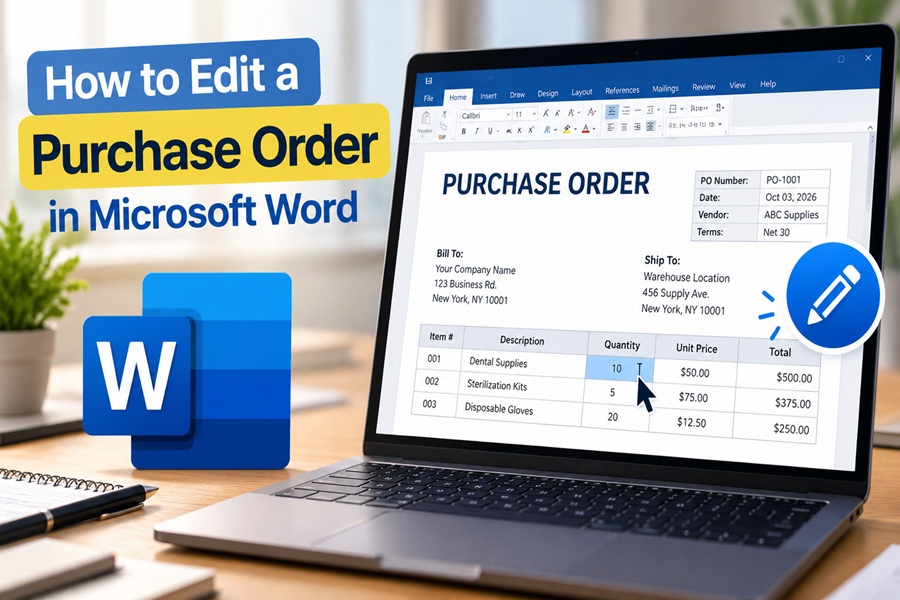
A supplier calls to say one item is back ordered. Your manager wants to bump the quantity on another line. Suddenly the purchase order you sent yesterday needs changes, and the only copy is a Word file that someone built three years ago.
Editing a purchase order in Microsoft Word is usually quick once you know where Word hides the right tools. The trickier parts are unlocking protected files, keeping table math accurate and handling the revision in a way your supplier and accounting team can follow. This guide walks through each piece.
Start With the Right File
Before changing anything, make a copy. Purchase orders are financial records, and you will want the original version for your files.
- Open the folder where the PO is saved.
- Right click the file and choose Copy, then Paste.
- Rename the copy with a clear revision label, such as PO 1045 Rev 1.
Now open the copy in Word. If a yellow bar at the top says Protected View, click Enable Editing. Word shows that bar for files downloaded from email or the internet.
If the File Will Not Let You Type
Some purchase order templates are locked so that only certain fields can be filled in. You will notice that clicking on the company name or terms does nothing.
To unlock it:
- Go to the Review tab.
- Click Restrict Editing. A panel opens on the right.
- Click Stop Protection at the bottom of the panel.
- Enter the password if one was set.
If you do not know the password, ask whoever created the template, often someone in purchasing or finance. Without it, you can still fill in the editable fields, which is usually all you need for a routine change.
If You Only Have a PDF
Suppliers and internal systems often send POs as PDFs. Word can open many of them directly.
- In Word, go to File and choose Open.
- Select the PDF.
- Word will warn that it is converting the file into an editable document. Click OK.
Converted PDFs rarely look perfect. Tables may shift, fonts may change and line spacing can wander. For simple POs this is manageable. For complex ones, it can be faster to rebuild the order using a fresh Word template.
Editing the Header Details
The header usually includes your company details, the supplier, the PO number, the date and shipping information. Click into each field and type the new text.
A few tips keep things clean:
- Keep the original PO number and add a revision label, such as “1045 Rev 1,” rather than issuing a new number. This makes it clear the order is a change, not a duplicate.
- Update the date to show when the revision was issued, and consider keeping the original order date in a separate line.
- Check the ship to and bill to addresses carefully. These are easy to overlook and expensive to get wrong.
Changing Line Items in the Table
Most of the work happens in the items table.
To edit a cell, click into it and type. Use Tab to move to the next cell and Shift + Tab to move back.
To add a row, click in the last cell of the table and press Tab. Word creates a new row automatically. To insert a row in the middle, click in a row, open the Layout tab that appears under Table Tools, then choose Insert Above or Insert Below.
To delete a row, click in it, go to Layout, choose Delete and then Delete Rows. Pressing the Delete key only clears the text, not the row itself.
To mark a canceled item, select the text and apply strikethrough from the Home tab instead of removing it. Many purchasing teams prefer this because it shows exactly what changed.
Keeping the Math Right
Here is where Word differs from a spreadsheet. Totals in a Word table do not recalculate on their own unless the template uses formula fields.
To add or fix a formula:
- Click in the cell where the result should go, such as the line total.
- Open the Layout tab and click Formula.
- For a line total, enter =PRODUCT(LEFT) to multiply the numbers to the left, such as quantity and unit price.
- For a column total, enter =SUM(ABOVE).
- Pick a number format, such as currency, and click OK.
After changing any numbers, click into the result and press F9 to update it. To update every field in the document at once, press Ctrl + A and then F9.
Formulas in Word are best for simple tables. If your PO includes tax rates, discounts and shipping charges, double check the totals with a calculator. For heavy number work, many teams keep the math in Excel and paste the finished table into Word.
Tracking What Changed
Suppliers appreciate seeing exactly what was modified. Word’s Track Changes feature does that automatically.
- Go to the Review tab.
- Turn on Track Changes before you start editing.
- Make your edits. Additions appear underlined and deletions are crossed out.
You can send this marked up version for review, then later choose Accept All Changes to create a clean final copy. Alternatively, add a short note near the top of the PO, such as “Revision 1: Line 3 quantity changed from 50 to 75. Line 5 canceled.”
Saving and Sending the Revised Order
Most suppliers prefer a PDF because it cannot be edited and looks the same on every device.
- Go to File and choose Save As.
- Pick PDF from the file type list.
- Name it to match your revision label and save.
Keep the editable Word version in your records alongside the PDF. When you email the supplier, mention the revision in the subject line and ask them to confirm they received the updated order. Many companies require written acknowledgment before the change is considered final.
Using a Template Next Time
If your current PO file is fragile, a fresh template can save headaches. In Word, go to File, then New, and search for purchase order. Microsoft offers several free designs with tables already built. Replace the sample logo and company details, set up your formulas once and save it as a Word template so every future order starts from the same clean layout.
Word for the web can open and edit purchase orders too, but the desktop app offers the fullest set of table and formula tools.
Knowing When Word Is Not Enough
Word works well for small businesses that issue a handful of POs each month. Once you are tracking dozens of orders, multiple approvers and partial deliveries, the manual process gets risky. That is usually the point to look at accounting software with built in purchase orders or a dedicated purchase order management tool, where revisions, approvals and totals are handled automatically.
Until then, a copied file, a clear revision label, accurate formulas and a clean PDF will keep every change easy to follow for you, your supplier and whoever reconciles the invoice later.